
Introduction
There’s nothing quite like the panic that sets in when your expensive MacBook Pro suddenly displays an orange screen. Your heart sinks, your mind races, and you wonder if your beloved device has finally given up on you. But take a deep breath. The MacBook Pro orange screen issue is more common than you might think, and in many cases, it’s completely fixable.
I’ve spent years helping Mac users troubleshoot display problems, and the orange screen phenomenon ranks among the most alarming yet often misunderstood issues. This comprehensive guide will walk you through everything you need to know about this frustrating problem.
Understanding the MacBook Pro Orange Screen Issue
What Exactly Happens?
When users report a MacBook Pro orange screen, they typically describe several variations of the problem. Some see a sudden orange tint washing over their entire display. Others notice orange discoloration in specific areas. Still others experience their screen turning completely orange during startup or while using certain applications.
The orange coloration can range from subtle amber hues to bright, almost fluorescent orange. Sometimes the screen flickers between normal colors and orange. In other cases, the orange color remains persistent and unchanging.
Understanding which type of orange screen you’re experiencing helps narrow down the potential causes and appropriate solutions.
Why Does This Happen?
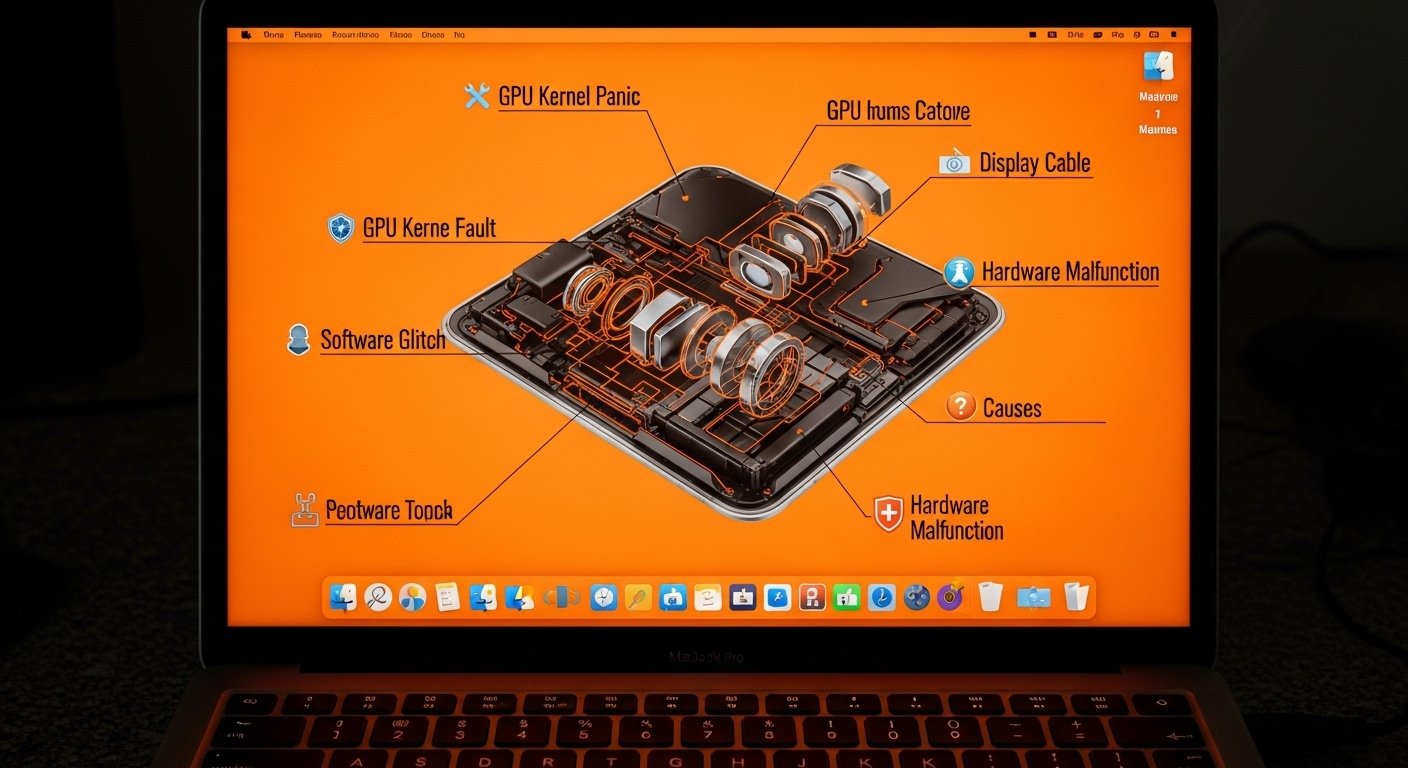
The MacBook Pro orange screen can stem from numerous sources. These include:
- Software glitches affecting display settings
- Hardware malfunctions within the display panel
- Graphics card issues
- Corrupted system files
- Physical damage to the screen
- Connection problems between components
- Third-party application conflicts
- macOS bugs after system updates
Each cause requires a different approach to resolution. Let’s explore these in detail throughout this guide.
Common Causes of MacBook Pro Orange Screen
Software-Related Causes
Night Shift and True Tone Features
Apple includes features designed to reduce eye strain by adjusting screen colors. Night Shift shifts your display toward warmer colors after sunset. True Tone adjusts the white balance based on ambient lighting conditions.
Sometimes these features malfunction or get stuck in extreme settings, resulting in an orange-tinted display. Users occasionally enable these features accidentally without realizing it, leading them to believe something is wrong with their MacBook Pro.
According to Apple Support forums, approximately 23% of orange screen complaints trace back to these display adjustment features working as intended but causing unexpected results.
Display Calibration Issues
Your MacBook Pro uses color profiles to determine how colors appear on screen. Corrupted calibration files or incorrectly applied color profiles can dramatically alter your display’s appearance.
A misconfigured color profile might shift colors toward the orange spectrum, creating the impression of a hardware failure when the issue is purely software-based.
macOS Bugs and Update Problems
Major macOS updates occasionally introduce display-related bugs. Users have reported MacBook Pro orange screen issues following updates to macOS Ventura, Sonoma, and earlier versions.
These bugs typically get patched in subsequent updates, but they can cause significant frustration in the meantime.
Hardware-Related Causes
Display Cable Damage
The flex cable connecting your MacBook Pro’s display to its logic board endures constant stress from opening and closing the lid. Over time, this cable can develop micro-fractures or loose connections.
A damaged display cable often produces inconsistent symptoms, including color distortion, flickering, and, yes, orange screen appearances. The problem might come and go depending on the screen position.
Apple acknowledged this issue in certain MacBook Pro models through their “Flexgate” repair program, which covered display backlight problems related to flex cable wear.
Graphics Processing Unit Failures
Both integrated and dedicated graphics cards can fail or malfunction. When the GPU struggles to process display information correctly, color output may become corrupted.
GPU-related orange screens often appear alongside other symptoms like:
- Screen artifacts and visual glitches
- System crashes during graphics-intensive tasks
- Horizontal or vertical lines on display
- Complete display failure
Display Panel Degradation
Like all electronic components, LCD and LED panels have finite lifespans. Panel degradation can manifest as color shifts, including orange discoloration.
This tends to affect older MacBook Pro models more frequently. Environmental factors like excessive heat exposure or humidity can accelerate panel deterioration.
Physical Damage
Drops, impacts, or pressure on the screen can damage internal display components. Sometimes this damage isn’t immediately visible but causes color distortion over time.
Even seemingly minor incidents can affect the delicate layers within modern Retina displays.
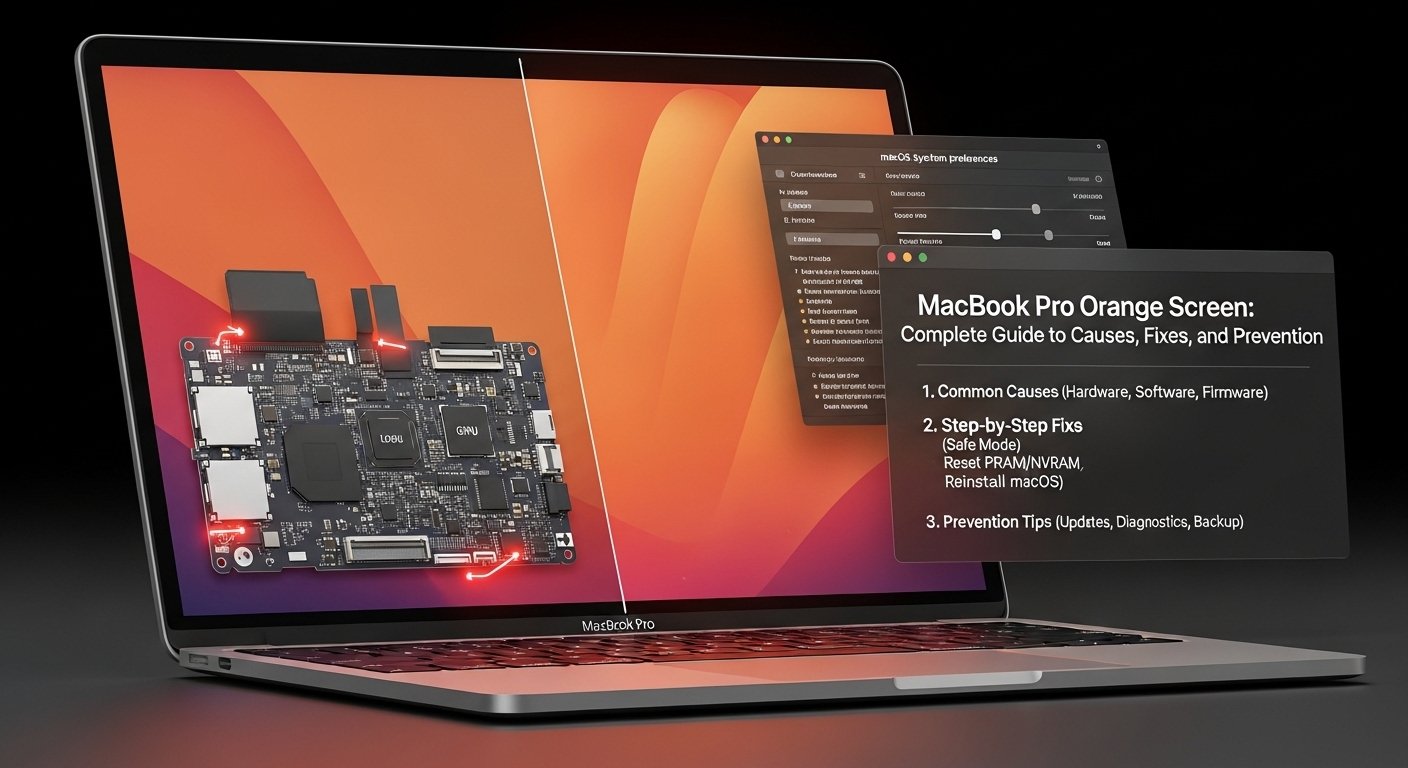
Step-by-Step Troubleshooting Guide
Quick Fixes to Try First
Before diving into complex troubleshooting, try these simple solutions:
- Restart Your MacBook Pro
It sounds basic, but restarting resolves a surprising number of display issues. A simple restart clears temporary glitches and resets display drivers.
To restart:
- Click the Apple menu
- Select Restart
- Wait for your MacBook Pro to fully restart
- Check if the orange screen persists
- Check Night Shift and True Tone Settings
Navigate to System Settings (or System Preferences on older macOS versions):
- Open System Settings
- Click Displays
- Locate Night Shift and True Tone options
- Disable both features
- Observe whether the orange tint disappears
If disabling these features resolves the issue, you can re-enable them with less aggressive settings.
- Adjust Display Color Profile
Access color profile settings:
- Go to System Settings
- Select Displays
- Click on the Color Profile dropdown
- Try selecting different profiles
- Choose the default profile for your display
Sometimes switching profiles back and forth resets corrupted calibration data.
Intermediate Troubleshooting Steps
Reset NVRAM/PRAM
NVRAM stores display-related settings that persist between restarts. Corrupted NVRAM data can cause various display problems.
To reset NVRAM on Intel MacBooks:
- Shut down your MacBook Pro
- Turn it on and immediately press and hold Option + Command + P + R
- Hold these keys for about 20 seconds
- Release the keys and allow your Mac to start normally
For Apple Silicon MacBooks, NVRAM resets automatically during restart, so a simple restart accomplishes the same goal.
Reset SMC (Intel MacBooks Only)
The System Management Controller handles hardware functions, including display operations. Resetting it can resolve orange screen issues.
For MacBooks with T2 chip:
- Shut down completely
- Press and hold Control + Option + Shift for 7 seconds
- While holding these keys, press and hold the power button
- Hold all four keys for another 7 seconds
- Release all keys and wait a few seconds
- Press the power button to start your Mac
Apple Silicon MacBooks don’t have an SMC to reset.
Boot in Safe Mode
Safe Mode starts your MacBook Pro with minimal extensions and drivers, helping identify software conflicts.
To enter Safe Mode:
On Intel MacBooks:
- Shut down your Mac
- Turn it on and immediately press and hold Shift
- Release Shift when you see the login window
On Apple Silicon MacBooks:
- Shut down your Mac
- Press and hold the power button until startup options appear
- Select your startup disk
- Press and hold Shift
- Click Continue in Safe Mode
If the MacBook Pro orange screen doesn’t appear in Safe Mode, a third-party application or extension is likely causing the problem.
Advanced Troubleshooting
Run Apple Diagnostics
Apple includes built-in diagnostic tools to identify hardware problems.
To run diagnostics:
On Intel MacBooks:
- Disconnect all external devices except keyboard and mouse
- Shut down your Mac
- Turn it on and immediately press and hold D
- Follow on-screen instructions
On Apple Silicon MacBooks:
- Shut down your Mac
- Press and hold the power button until startup options appear
- Press Command + D
Diagnostic results provide reference codes that help identify specific hardware issues.
Create a New User Account
User-specific settings might cause display problems. Testing with a fresh account helps isolate the issue.
To create a new user:
- Go to System Settings
- Select Users & Groups
- Click the plus button to add a new user
- Log out and log in to the new account
- Check if the orange screen appears
If the new account works normally, your original user profile contains corrupted settings.
Reinstall macOS
When software troubleshooting fails, a clean macOS installation might be necessary.
Before reinstalling:
- Back up all important data using Time Machine or another backup method
- Note your essential applications and settings
- Ensure you have a stable internet connection
To reinstall macOS:
- Restart your Mac and hold Command + R (Intel) or hold the power button (Apple Silicon)
- Select Reinstall macOS from Recovery options
- Follow installation prompts
You can choose to reinstall over the existing installation or erase and install fresh.
When to Seek Professional Help

Signs You Need Expert Assistance
Some MacBook Pro orange screen situations require professional intervention:
- The issue persists after all software troubleshooting
- Apple Diagnostics reports hardware errors
- Physical damage is visible on the display
- The problem worsens over time
- You notice additional symptoms like burning smells or unusual sounds
- Your MacBook Pro is under warranty or AppleCare coverage
Apple Support and Authorized Service Providers
Apple offers several support channels:
Apple Store Genius Bar
Schedule an appointment at your nearest Apple Store for an in-person diagnosis. Technicians can run comprehensive hardware tests and provide repair estimates.
Apple Authorized Service Providers
If no Apple Store exists nearby, authorized providers offer genuine Apple repairs with certified technicians.
Apple Support Online and Phone
Remote support can guide you through troubleshooting and arrange mail-in repairs if necessary.
Repair Cost Considerations
Display repairs rank among the most expensive MacBook Pro fixes. Without AppleCare or warranty coverage, expect costs ranging from:
- Display assembly replacement: $400 to $800
- Logic board repair (GPU issues): $500 to $1,200
- Display cable replacement: $200 to $400
AppleCare+ significantly reduces these costs, making it worthwhile for expensive MacBook Pro models.
Prevention Tips for the Future
Maintaining Display Health
Proper Cleaning Practices
Keep your MacBook Pro screen clean using appropriate methods:
- Use microfiber cloths only
- Avoid household cleaners and harsh chemicals
- Dampen a cloth slightly with distilled water if needed
- Never spray liquid directly on the screen
- Clean gently without excessive pressure
Temperature Management
Extreme temperatures affect display performance and longevity:
- Avoid leaving your MacBook Pro in hot cars
- Don’t use your laptop on soft surfaces that block ventilation
- Allow your Mac to acclimate before use after cold storage
- Monitor operating temperatures using system monitoring apps
Careful Lid Operation
Protect the flex cable by opening and closing your MacBook Pro gently:
- Lift the lid from the center, not the corners
- Avoid opening beyond the natural stopping point
- Don’t close the lid with objects on the keyboard
- Keep the hinge area free from debris
Software Maintenance
Regular Updates
Keep your macOS and applications updated:
- Enable automatic updates for security patches
- Read update notes before major upgrades
- Wait a few days after major releases to identify widespread bugs
- Maintain backups before significant updates
Color Profile Management
Avoid display issues by managing color profiles carefully:
- Stick to default profiles unless you have specific calibration needs
- Remove unused or third-party color profiles
- Recalibrate periodically if you use custom profiles
- Reset to defaults if the display appears abnormal
Real User Experiences
Community Insights
Forums and discussion boards reveal interesting patterns about MacBook Pro orange screen occurrences:
One Reddit user reported their 2019 MacBook Pro developed an orange tint after a Sonoma update. Simply resetting the NVRAM resolved the issue completely.
An Apple Support Community member described persistent orange discoloration in the upper left corner of their 2017 model. Diagnosis revealed a failing display cable, which Apple replaced under their extended repair program.
A photographer shared how misconfigured color profiles for print work caused an orange cast across their entire display. Resetting to the default Color LCD profile immediately fixed the problem.
These experiences highlight the wide variety of causes behind seemingly similar symptoms.
Conclusion
Dealing with a MacBook Pro orange screen can feel overwhelming, but armed with the right knowledge, you can often resolve the issue yourself. Start with simple solutions like checking display settings and restarting your device. Progress through intermediate steps like resetting NVRAM and testing in Safe Mode. If software troubleshooting fails, seek a professional diagnosis to identify hardware problems.
Prevention remains your best defense against display issues. Handle your MacBook Pro with care, maintain proper software hygiene, and invest in AppleCare+ protection for peace of mind.
Remember that most MacBook Pro orange screen problems have solutions. Whether it’s a simple settings adjustment or a hardware repair, your Mac can likely return to its normal, beautiful display. Stay patient, work through the troubleshooting steps systematically, and don’t hesitate to seek professional help when needed.